


Every time you visit a website, your computer performs a quick lookup to find its IP address. To save time on repeat visits, your operating system stores those results locally. This storage system is called DNS cache, and it plays a big role in how fast and accurately your browser connects to websites.
The problem is that cached DNS records can become outdated. When that happens, you may find yourself staring at error messages, loading old versions of websites, or struggling to connect to a domain that recently moved servers. That is where the DNS Flush Command comes in. It clears those stored records and forces your computer to fetch fresh information from DNS servers.
If you have been dealing with unexplained network issues, learning how to use the DNS Flush Command could save you a lot of frustration.
What Is a DNS Flush Command?
DNS stands for Domain Name System. Consider it an internet phonebook. When you type a website address into your browser, DNS translates that address into a numeric IP address so your computer knows where to connect.
Your operating system caches those translations to speed things up on future visits. Over time, though, some of those cached entries can become incorrect or expired. The DNS Flush Command is a terminal or command-line instruction that deletes all locally stored DNS records. Once cleared, your system will request fresh, accurate records the next time you visit a website.
Why You Might Need to Flush DNS
DNS-related problems are more common than most users realize. Here are some of the most typical situations where running the DNS Flush Command makes sense:
- A website is not loading even though it is online for other users
- DNS changes you made are not reflecting on your computer
- You recently switched to a new DNS server, and the old settings are still active
- A website you visit shows an outdated or incorrect version
- You are troubleshooting a domain connection error and need a clean slate
In most of these cases, the issue is not your internet connection itself. It is simply your computer holding onto information that is no longer accurate.
How the DNS Flush Command Works
When you run the DNS Flush Command, your operating system immediately deletes all entries in its local DNS resolver cache. From that point forward, any website request your browser makes will trigger a fresh DNS lookup, sending a request to your configured DNS server for the latest record.
The process is fast and completely safe. It does not affect your browsing history, saved passwords, or any other stored data. It only removes the cached DNS mappings that your system has accumulated over time.
It is worth noting that flushing DNS resolves local-level issues. If your router or internet service provider has its own DNS cache, that is a separate layer you would need to address independently.
DNS Flush Command for Different Operating Systems
The exact command you use depends on your operating system. Here is how to do it on the three major platforms.
DNS Flush Command on Windows
Windows makes this straightforward. Follow these steps:
- Click the Start menu and search for Command Prompt
- Right-click it and select Run as administrator
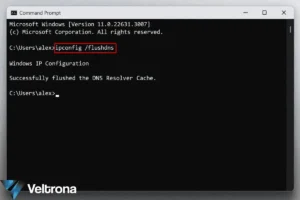
- Type the following command and press Enter:
ipconfig /flushdns
If the command runs successfully, you will see the message: “Successfully flushed the DNS Resolver Cache.”
You can also use ipconfig /displaydns beforehand to view all currently cached DNS records. DNS records include a Time To Live (TTL) value measured in seconds, which tells your system how long to keep each entry before it expires naturally.
DNS Flush Command on macOS
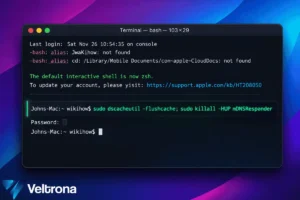
On macOS, you will use Terminal to run the DNS Flush Command. The specific commands can vary slightly depending on your macOS version, but the following pair covers most modern versions:
sudo dscacheutil -flushcache
sudo killall -HUP mDNSResponder
Open Terminal from your Applications folder, paste or type the commands one at a time, and press Enter after each. Your system will prompt you for an administrator password. The terminal does not display characters as you type your password, so just type it and press Enter.
DNS Flush Command on Linux
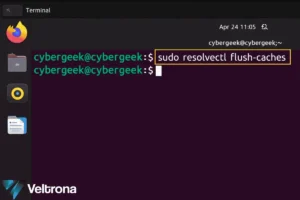
Linux distributions handle DNS caching differently depending on the system configuration. On distributions using systemd-resolved, which includes Ubuntu 22.04 and later, use:
sudo resolvectl flush-caches
According to the official resolvectl man page, this command flushes all DNS resource record caches maintained locally by the service. It is the recommended method over sending a raw signal to the service directly because it operates synchronously.
On older distributions that use nscd (Name Service Cache Daemon), you can restart the service instead:
sudo /etc/init.d/nscd restart
If you are unsure which method applies to your system, check which DNS resolver your distribution is running before choosing a command.
Key Benefits of Using the DNS Flush Command
Running the DNS Flush Command is a quick action with several practical advantages:
- It removes stale DNS entries that may be causing connection failures
- It forces your computer to retrieve accurate, up-to-date records from DNS servers
- It can resolve domain access issues within seconds, without requiring a full system restart
- It is a free, built-in tool available on Windows, macOS, and Linux
- It simplifies the troubleshooting process by ruling out the local DNS cache as a cause
For IT professionals and everyday users alike, it is one of the fastest ways to diagnose network problems.
When You Should Use the DNS Flush Command
Not every network problem requires a DNS flush, but there are clear situations where it is the right move:
- After migrating a website to a new server or hosting provider
- After updating DNS records and waiting for changes to take effect locally
- When your browser loads an older cached version of a website
- After switching between different networks, such as home and office
- When following general network troubleshooting steps before escalating to more complex fixes
Using it regularly without a specific reason is generally unnecessary, since your operating system manages DNS cache automatically through TTL expiration.
Common Mistakes When Using the DNS Flush Command
A few simple errors can prevent the command from working as expected.
Running the command without administrator or root privileges is the most common mistake. On Windows, the Command Prompt must be opened as administrator. On macOS and Linux, the sudo prefix is required, followed by your password.
Another common misconception is assuming that flushing DNS will fix all internet problems. If the issue is with your Wi-Fi connection, your router, your ISP, or the website itself, a DNS flush will not resolve it. It only addresses problems caused by corrupted or outdated local DNS records.
Using the wrong command for your operating system is also a common error. The Windows command does not work on macOS, and macOS commands will not run on Linux. Always confirm which platform and DNS resolver you are working with before running anything.
Finally, keep in mind that even after a successful flush, your router or ISP may still be serving cached DNS responses. If flushing local DNS does not fix the problem, restarting your router or contacting your ISP may be the next step.
The DNS Flush Command Is a Simple but Powerful Tool
Network problems are frustrating, but many of them have straightforward causes. Outdated DNS cache sits at the root of a surprising number of website access issues, and the DNS Flush Command gives you a fast, built-in way to deal with it.
Whether you are on Windows, macOS, or Linux, the process takes less than a minute. Once you run the right command for your system, your computer will start fetching fresh DNS records immediately. That single step can fix connection errors, resolve stale website versions, and clear the way for a more accurate browsing experience.
The next time a website behaves unexpectedly, try the DNS Flush Command before diving into more complicated troubleshooting. It is one of the easiest fixes available, and it works more often than you might expect.